 DEBI
How to check how much data your Mac uses
On your home Wi-Fi it rarely matters. On your phone's hotspot, a single macOS update can use a big part of your monthly plan. Here are four ways to see what your Mac has used, what usually uses the most, and how to use less.
1Activity Monitor
Every Mac has it, and it shows the total since your Mac last started.
- Press ⌘ Space, type Activity Monitor and press Return. (It's in Applications › Utilities.)
- Click the Network tab.
- At the bottom of the window you see how much data has been received and sent in total. Each row shows how many bytes that app has sent and received.
Good to know: the totals start again from zero every time your Mac restarts, and an app's row only counts from when the app opened. There is no daily or monthly history, and no split between your home Wi-Fi and your hotspot.
2Terminal
If you prefer the command line, netstat lists every network connection with the bytes in and out since startup:
netstat -ib -I en0en0 is usually Wi-Fi. Ibytes is downloaded, Obytes uploaded. Run netstat -ib without -I en0 to see all connections. Same limits as Activity Monitor: it resets on restart and keeps no history.
3On your iPhone
If your Mac uses your iPhone's Personal Hotspot, the iPhone counts what passes through it:
- On the iPhone, open Settings › Cellular (called Mobile Data in some regions).
- Scroll down to Personal Hotspot. The figure next to it is everything devices used through your hotspot; tap it to see each device, including your Mac.
- The count runs since the last reset. Reset Statistics is at the very bottom; reset it on the day your plan renews and you always see this period's figure.
Good to know: there is no per-day view, it only works with an iPhone, and you have to remember to reset it.
4Debi, in the menu bar
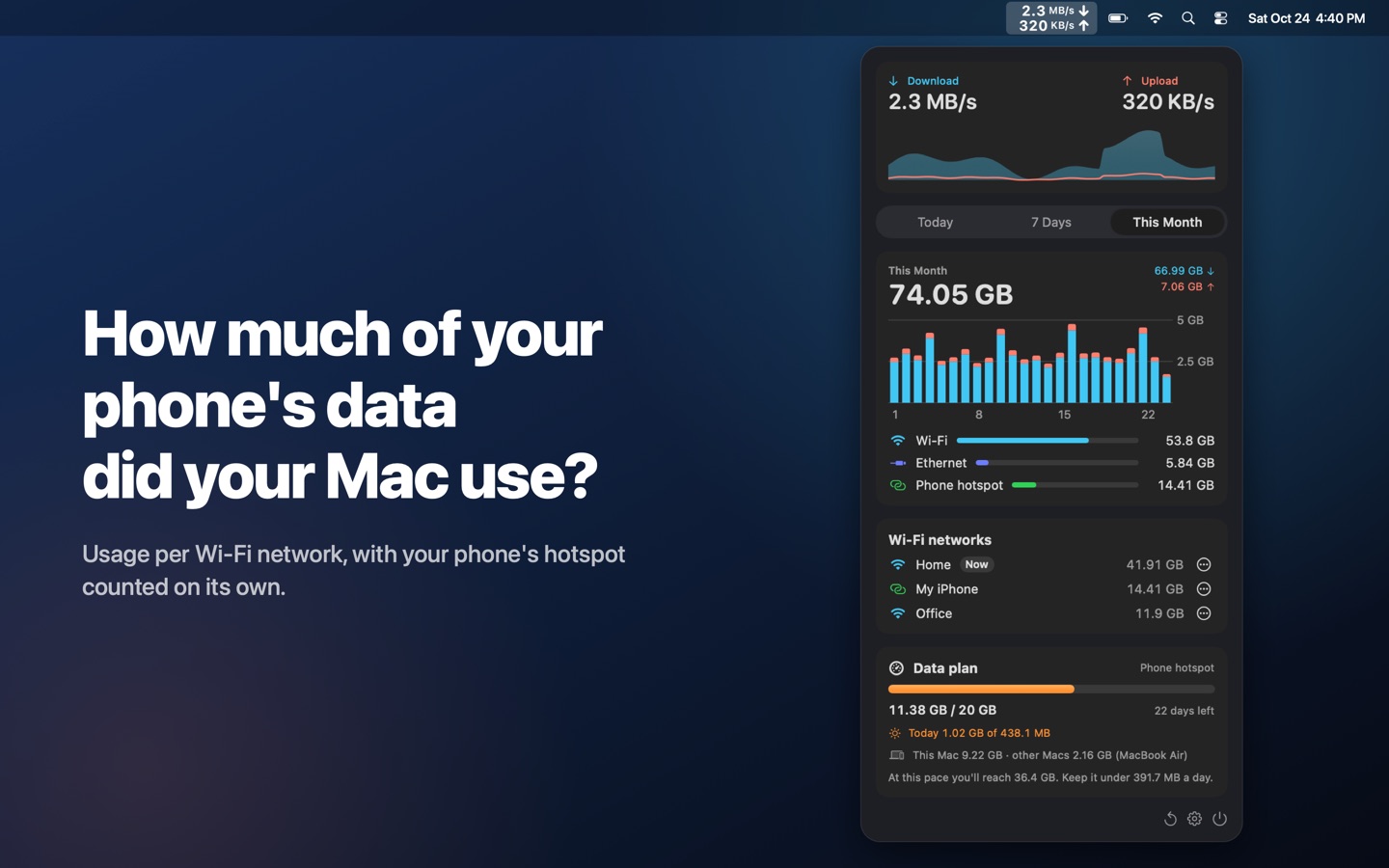
We made Debi because none of the above answers the real question: how much of my phone's plan did my Mac use this month? Debi lives in your menu bar and keeps the history for you:
- Live download and upload speed, every second.
- Today, the last 7 days and usage per Wi-Fi network. The history survives restarts.
- Your iPhone's hotspot is recognized automatically; mark any other phone with one click.
- With Debi Pro (one-time purchase, no subscription): your monthly data plan with its renewal day, a warning before it runs out, today's share and an alert when something big downloads on your hotspot.
- No account, no ads, no tracking. Everything stays on your Mac.
5Why is my Mac using so much data?
These are the usual suspects, roughly biggest first:
| What | How much, roughly |
|---|---|
| macOS updates | Often several GB; a new major version of macOS is more than 10 GB. |
| iCloud Photos, iCloud Drive, Dropbox, Google Drive, OneDrive | As much as the photos and files they sync. A new phone full of photos can mean many GB. |
| Video streaming and video calls | An hour of HD video is easily 1–3 GB. |
| App and game downloads, cloud backups | From a few hundred MB to tens of GB. |
Watch the live speed (in Activity Monitor's Network tab or in Debi's menu bar). If it stays high while you aren't doing anything, something in the background is syncing or downloading.
6Use less data on a hotspot
- Turn on Low Data Mode for the hotspot. Open System Settings › Wi-Fi, click Details… next to your phone's network and turn on Low Data Mode. macOS then holds back automatic updates and background tasks such as Photos syncing. On the hotspot, Debi shows whether it's on and opens the setting for you.
- Stop updates from downloading by themselves. Open System Settings › General › Software Update, click ⓘ next to Automatic Updates and turn off Download new updates when available. Turn it back on when you're home.
- Pause cloud sync apps (Dropbox, Google Drive, OneDrive) while you're on the hotspot.
- Lower the video quality in streaming apps and video calls.
- Set your data plan in Debi. You get a warning before you run out and an alert if something large starts downloading on your hotspot.
7Questions
Does my Mac know when it's on a hotspot?
Yes. macOS marks an iPhone hotspot as a costly connection, and apps can check this and hold back on big downloads. But macOS doesn't show you how much you've used on it; you need one of the methods above.
Will the numbers match my carrier's exactly?
Very closely, but not to the byte. Carriers count at their end and may round per session. Your Mac only counts itself, so other devices on the same hotspot use data too.
Why does Debi ask for Location access?
macOS only tells apps the name of your Wi-Fi network if they have Location access. Debi uses the name to show usage per network and never uses or stores your location. Without the permission it still works; networks just appear unnamed.